
How to Fix the Unknown Publisher Warning in Windows
-
When users run or install software in Windows, they may see a security warning stating that the publisher is unknown or that the application is unrecognized. These messages can appear when software is unsigned, its digital signature cannot be validated, or Windows has not established sufficient reputation for the file.
For software developers and publishers, signing applications with a valid Code Signing Certificate helps verify the publisher's identity and detect changes made after signing. However, a digital signature does not guarantee that every Windows security warning will disappear.
This guide explains the common causes of publisher warnings, how developers can check their signatures, and what users should consider before allowing an application to run.
-
-
*
What Is an Unknown Publisher Warning in Software Code Signing?
A publisher warning indicates that Windows cannot establish the expected level of trust in the software's publisher or signature. The exact message depends on the security feature involved.
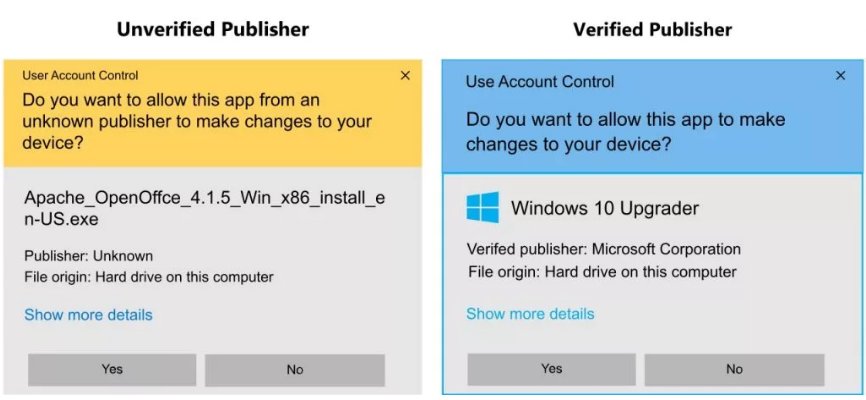
A valid Authenticode signature allows Windows to verify the signer's identity and check whether the signed file has been modified. If a file is unsigned, its signature is invalid, or the certificate chain cannot be trusted, Windows may not display a verified publisher name.
Microsoft Defender SmartScreen uses additional reputation signals, including publisher reputation and the reputation of the specific file. As a result, even correctly signed software may trigger a warning when it is new or not widely recognized.
-
*
Causes of Unknown Publisher Warnings
1. The File Is Not Digitally Signed
If an executable or installer has no digital signature, Windows cannot use a Code Signing Certificate to verify the publisher's identity or the file's integrity.
This commonly affects internally developed applications, test builds, and software distributed without code signing.
2. The Signature or Certificate Cannot Be Validated
A warning may appear if a signature is invalid, the certificate has been revoked, or Windows cannot build a trusted certificate chain. Incorrect signing procedures or missing intermediate certificates may also cause validation problems.
Certificate expiration requires additional context: a properly timestamped signature may remain verifiable after the signing certificate expires, provided the signature and timestamp meet the applicable validation requirements.
3. The Certificate Is Not Trusted by Windows
Windows relies on trusted root certificates and a valid certificate chain to verify the signer. A certificate issued by an untrusted authority, or a chain that cannot be validated, may prevent Windows from recognizing the publisher.
4. The File Has Little or No Reputation
A newly released application may trigger a Microsoft Defender SmartScreen warning even when it has a valid digital signature. SmartScreen evaluates both publisher and file reputation, and reputation can take time to develop.
For more details, see Microsoft's guide to SmartScreen reputation for Windows app developers.
-
*
How to Fix Unknown Publisher Warnings in Windows 10 and 11
The appropriate solution depends on whether you develop the software or are trying to run an application downloaded from another source.
-
*
For Software Developers and Publishers
Use a Code Signing Certificate
If you distribute Windows applications, sign your releases with a valid Code Signing Certificate issued by a trusted Certificate Authority.
A certificate helps users verify the publisher and detect changes to signed files. It can also support the development of publisher reputation over time, although it does not guarantee immediate SmartScreen recognition.
Step 1: Obtain a Code Signing Certificate
Review the available Code Signing Certificates at GoGetSSL and select an option that meets your validation and signing requirements.
Before ordering, check the current Code Signing Certificate validation requirements and the applicable private key protection requirements.
Step 2: Sign Your Application
For Windows Authenticode signing, developers commonly use Microsoft's SignTool, available through the Windows SDK. Follow the tool's documentation to sign the appropriate files and apply a trusted timestamp.
The signing method must match your certificate's key storage and provisioning model.
Step 3: Verify and Distribute the Signed Software
Verify the signature before releasing the application. Avoid modifying signed files after signing, as changes can invalidate the signature.
Distribute the application through your official website or another trusted channel. Newly released software may still trigger SmartScreen warnings until sufficient reputation has accumulated.
-
*
For Software Users
1. Enable or Disable SmartScreen Filter
Microsoft Defender SmartScreen helps protect users from potentially unsafe applications and websites. It may warn users about applications that Windows cannot confidently identify or that have limited reputation.
You can review SmartScreen settings in Windows Security. Disabling these protections can increase exposure to malicious software, so it is generally safer to keep them enabled.
To review the available settings:
- Open Windows Security by searching for it in the Start menu.
- Navigate to App & browser control.
- Open Reputation-based protection settings.
- Review the available Microsoft Defender SmartScreen options and adjust them only if you understand the security implications.
The exact options may vary by Windows version and device policy. Changing SmartScreen settings does not fix an invalid digital signature or make an untrusted application safe.
2. Bypass the Warning for Trusted Software
If you have independently verified that a downloaded file is legitimate, Windows may offer an Unblock option for files marked as coming from another computer or the internet.
To check:
- Right-click the file and select Properties.
- On the General tab, look for the Unblock checkbox in the security section.
- If the option is available and you trust the file, select it.
- Click Apply, then OK.
This removes the relevant file-blocking flag. It does not repair an invalid signature or guarantee that the Unknown Publisher or SmartScreen warning will disappear. Do not unblock files from unknown or suspicious sources.
3. Add the Publisher to Trusted Publishers
In managed environments, an administrator can add a publisher certificate to the Trusted Publishers certificate store. This may be appropriate when an organization has verified the publisher and needs to trust software signed with that certificate.
To import a publisher certificate:
- Open the Microsoft Management Console (MMC) by typing mmc into the Start menu search.
- Select File > Add/Remove Snap-in.
- Select Certificates and click Add.
- Choose Computer account, click Next, and then Finish.
- Under Certificates (Local Computer), locate and select the Trusted Publishers certificate store.
- Right-click the store and choose All Tasks > Import.
- Select the verified publisher certificate and follow the wizard to complete the import.
Administrator permissions may be required. Import only certificates whose origin and purpose you have verified. Adding a publisher certificate to this store does not guarantee that SmartScreen warnings will disappear.
-
*
How Can Software Companies Verify Publisher Details After Signing?
After signing an application, developers should verify that the digital signature is valid and the expected publisher information is displayed.
Step 1: Open the File Properties
Locate the signed executable, such as an .exe file. Right-click it and select Properties.
Step 2: Locate the Digital Signatures Tab
If the file contains an embedded digital signature, open the Digital Signatures tab. Select the relevant signature and click Details.
Step 3: Check the Signature Status
Confirm that Windows reports the signature as valid. If validation fails, review the error message and investigate the certificate chain, signature, and timestamp as applicable.
Step 4: View the Certificate Details
Click View Certificate to inspect the signing certificate. Check the Subject field and confirm that the publisher information matches your organization's official details.
Review the certificate chain and timestamp information where applicable.
Step 5: Verify Publisher Information
To perform additional checks:
- Compare the certificate details with your organization's information and the records provided during certificate issuance.
- Test the signed application on a clean Windows environment to identify possible certificate-chain or configuration issues.
- Use Microsoft's SignTool to verify the Authenticode signature. For example, run signtool verify /pa yourfile.exe, replacing yourfile.exe with the path to your file.
A valid signature confirms the signer's identity and file integrity under the applicable verification policy. It does not guarantee that SmartScreen will immediately recognize the application or that every security warning will be absent.
-
*
Difference Between Verified and Unverified Software Publishers
Parameter Verified publisher Unverified publisher Publisher identity A valid, trusted digital signature can identify the organization that signed the software. The publisher's identity may not be verifiable through a trusted digital signature. File integrity Signature verification can detect changes made after signing. Without a valid signature, users cannot rely on Authenticode to verify the file's integrity. Trust and credibility A verified signature provides evidence of the publisher's identity, but does not guarantee that the software is harmless. Users have less information to establish who signed the software or whether it has been modified. User experience Windows can display the publisher's verified name, although SmartScreen warnings may still appear. Windows may display an Unknown Publisher message or other security warnings. Security assessment Users can verify the signer and signature status before deciding whether to run the application. Users should exercise additional caution and verify the software's source independently. -
*
Conclusion
An Unknown Publisher warning may appear when software is unsigned, its certificate or signature cannot be validated, or Windows cannot establish the publisher's identity. SmartScreen warnings are different and may also appear when correctly signed software has not yet built sufficient reputation.
For software developers, signing releases with a valid Code Signing Certificate and verifying each signature helps users identify the publisher and check file integrity. For users, the safest approach is to verify the download source and digital signature rather than automatically bypassing security warnings.
If you distribute Windows software, review the Code Signing Certificates available through GoGetSSL to find an option that fits your publishing workflow and current signing requirements.
-