
Getting Started with AutoInstall SSL ACME: Install an SSL Certificate in cPanel
-
This guide explains how to automatically install and manage an SSL certificate in cPanel using the AutoInstall SSL ACME solution. The setup process is simple and takes just 10 minutes of time.
-
-
*
Requirements
Before you begin, make sure you have:
- Access to your cPanel account
- Your domain name
- SSH or Terminal access enabled in cPanel
-
*
Step 1: Log in to cPanel
Open your cPanel login page (normally yourwebsite.com/cpanel) and sign in using your hosting credentials.
-
*
Step 2: Open Terminal
Inside cPanel:
- Scroll to the Advanced section
- Click on Terminal icon
- Accept the warning message if prompted by clicking on "OK" or "I understand"
The Terminal allows you to execute commands directly on your hosting account.
-
*
Step 3: Install the ACME Agent
- Copy the installation command provided on the order page in your GoGetSSL account and run it inside the Terminal
- Wait until the installation is completed. You will see "Install success!" text.
-
*
Step 4: Locate Your Website Root Directory
For the next step, you'll need to locate the website's document root path before installing the certificate.
Most common locations:
- /home/username/public_html
- /home/username/public_html/yourwebsite.com
-
*
Step 5: Run the Certificate Installation Command
- Copy the SSL installation command from the order page in the GoGetSSL account.
- Replace /path/to/webroot with your actual website root path.
- Run the updated command in Terminal and wait for the process to finish.
- Once completed successfully, the SSL certificate will be installed and configured for automatic renewal.
-
*
Common Issues
Validation Timeout
This usually happens when the web root path is incorrect or inaccessible.
Unable to Write Validation File
Make sure the selected directory matches your website's actual document root.
-
*
How to Find the Correct Web Root Path
Step 1: Check Your Home Directory
In cPanel, open the main dashboard and locate the General Information section.
Step 2: Identify the Website Folder
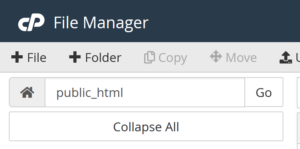
Most websites use the public_html directory; however, the configuration may differ.
Open File Manager and navigate to the folder containing your website files. The path should be displayed at the top left.
Step 3: Build the Full Path
Combine your home directory with the website folder path.
Example:
/home/yourwebsite/public_html
-